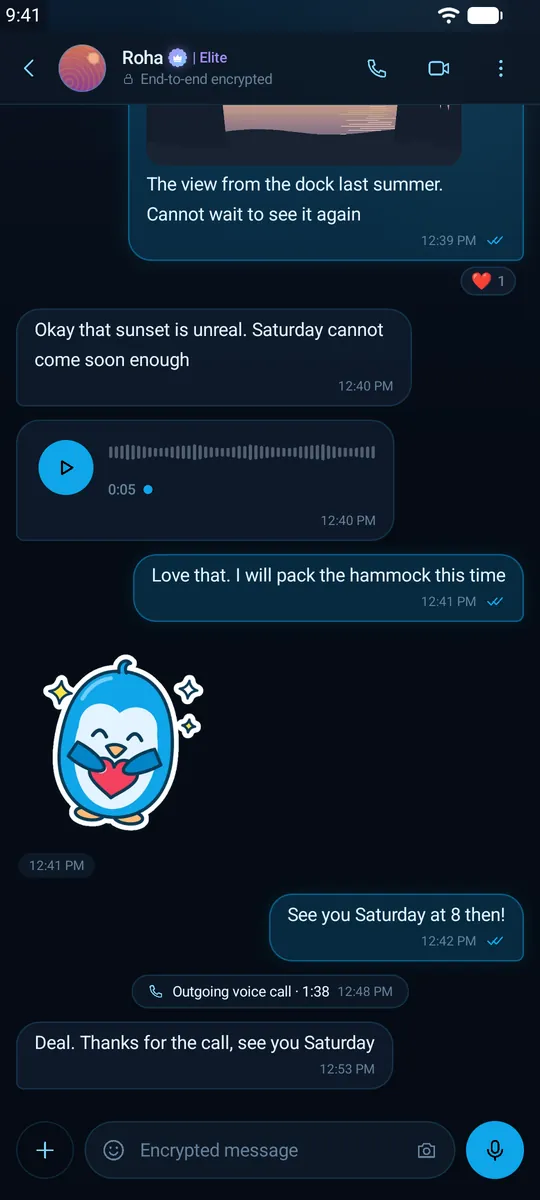
Get started
From download to first message.
9 short steps. No phone number, no e-mail: you need an Android phone, a licence key and a pen for your recovery words.
Step 1
Download the app
- On your Android phone (8.0 or newer), open the download page and tap Download APK.
- Optional: compare the SHA-256 shown on the page with the file you downloaded.
- iPhone is coming soon. The web app links to your phone once your account exists.
qchat.im/download
Android · APKDownload APKDownloads
ice-chat.apk
Step 2
Install it
- Open the downloaded file from your notifications or the Downloads folder.
- The first time, Android asks you to allow installs from your browser: turn on Allow from this source and go back.
- Tap Install. Later updates install over the old version and keep your chats.
Install unknown apps
Your browserAllow from this sourceDo you want to install this app?
Q Chat
Install
Step 3
Buy a licence key
- Pick a plan on the pricing page and choose New account — get a key.
- Pay with cryptocurrency. No name, no e-mail and no account are needed to buy.
- Keep the order page open until the payment confirms, then copy your key and keep it somewhere safe.
qchat.im/order
Payment confirmedYour licence key
ICE-7K2Q-9MXD-…
Copy keyNo name, no e-mail, no account needed.
Step 4
Open Q Chat
- Open the app and tap Create account.
- Already use Q Chat on another phone? Tap Link existing device instead and scan the code with your other phone.
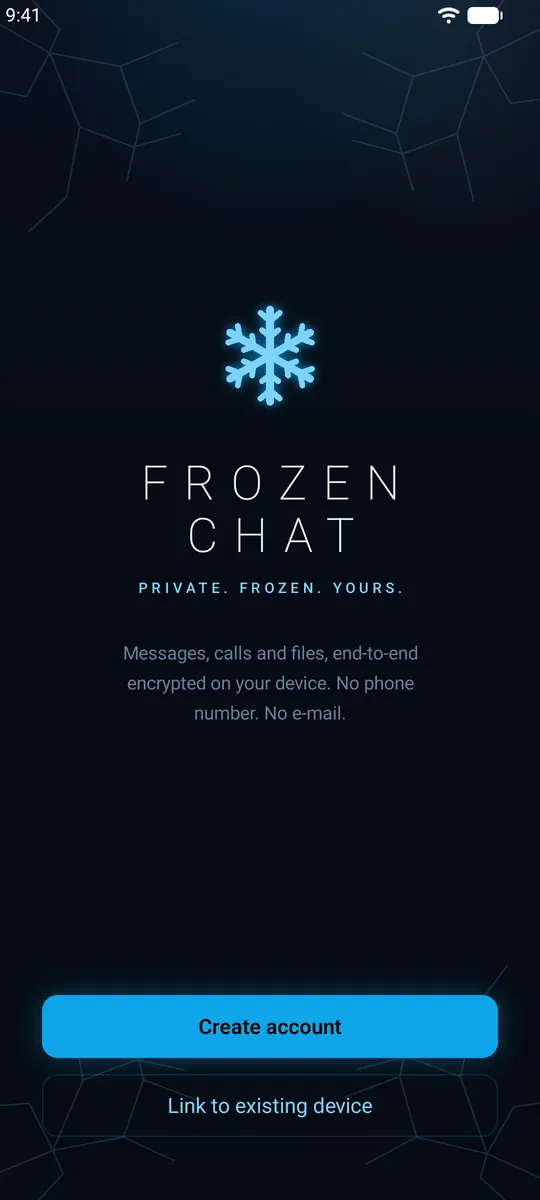
Step 5
Choose a username
- Pick the username people will type to find you. No phone number, no e-mail.
- The app tells you straight away whether it's free.
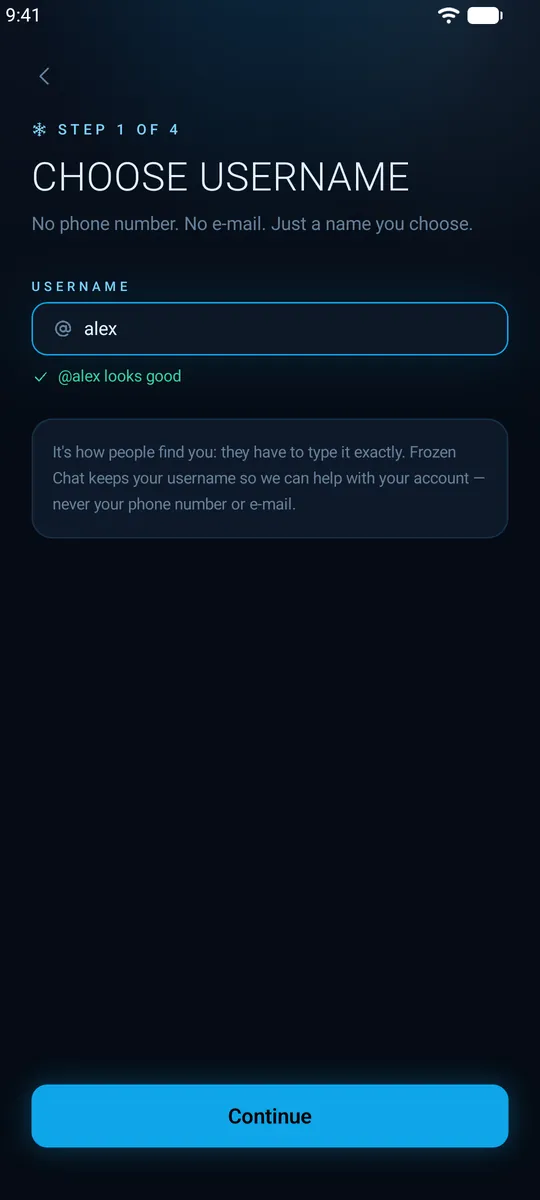
Step 6
Enter your licence key
- Paste the key from your order page and continue.
- Your phone now creates your encryption keys. The private keys never leave it.
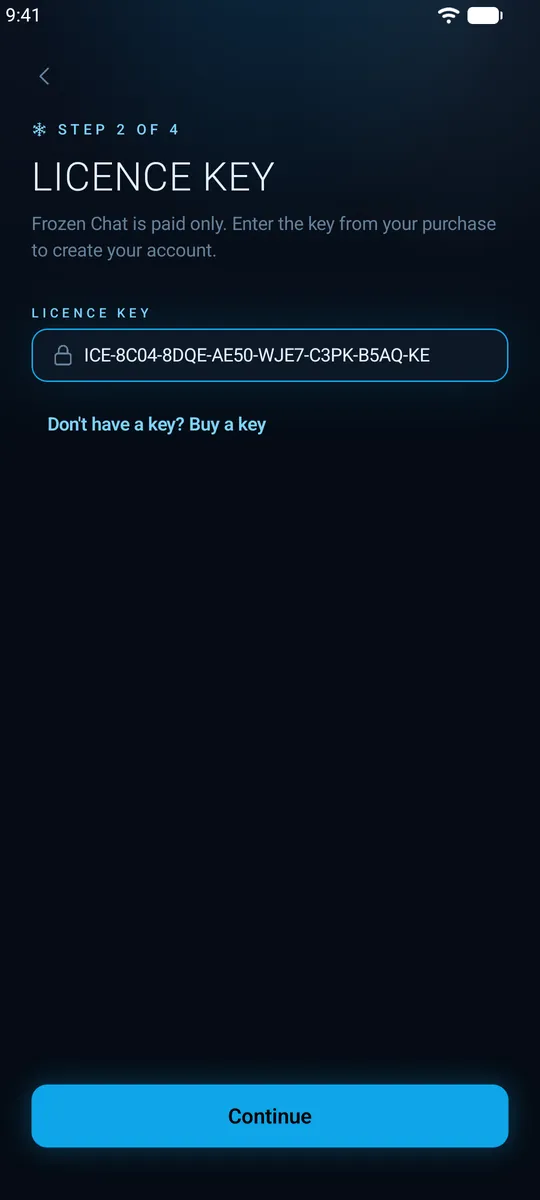
Step 7
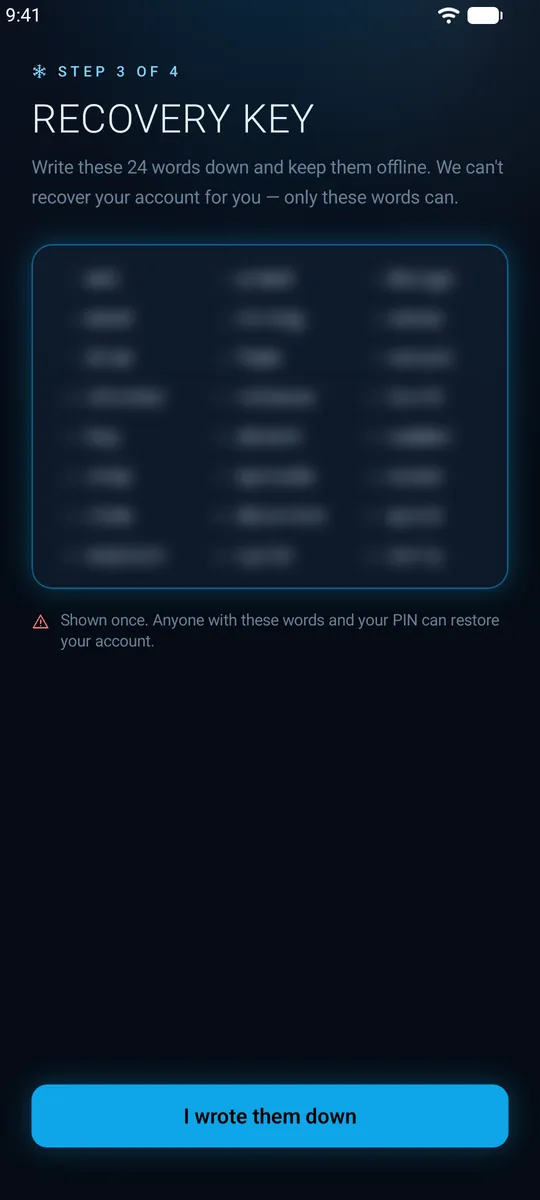
Write down your 24 recovery words
- The app shows your Recovery Key: 24 words, shown once. Write them on paper and keep them offline.
- They are the only way back into your account if you lose your phone. We can't recover it for you.
- The app then asks for a few of the words to check you have them.
Step 8
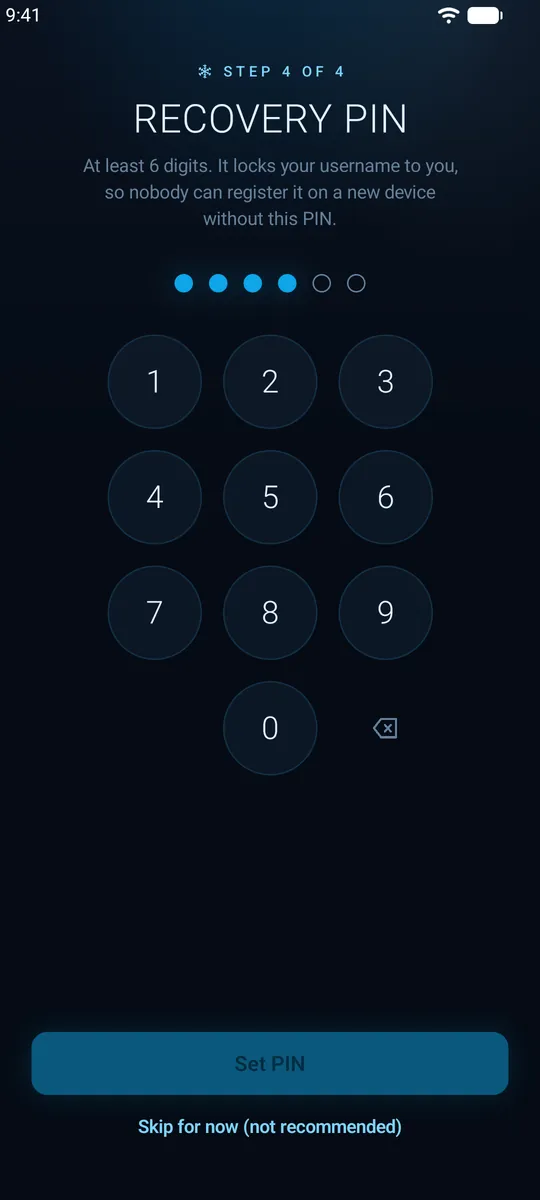
Set a recovery PIN
- Choose a recovery PIN and type it again to confirm. Together with your 24 words it restores your account.
- Then allow notifications: they only wake the app up and carry no name, no message and no sender.
Step 9
Start your first chat
- Start a new chat and type a friend's username, or scan their QR code.
- Say hello. Every message is end-to-end encrypted from the first one.
- For people who matter, compare safety numbers in the chat's info screen.